4) Creating publication-ready game images#
[1]:
from draw_tree import draw_tree

import pygambit as gbt
Using a combination of pygambit and the Gambit project’s LaTeX graphics package draw_tree, we can generate publication quality images for games with just a few lines of code.
This tutorial will demonstrate the key functionality of draw_tree when used for games built with pygambit, using an example game derived from the Gambit catalog. First, let’s load the game:
[2]:
g = gbt.catalog.load("2smp")
Now let’s see how draw_tree renders it with default settings:
[3]:
draw_tree(g)
[3]:
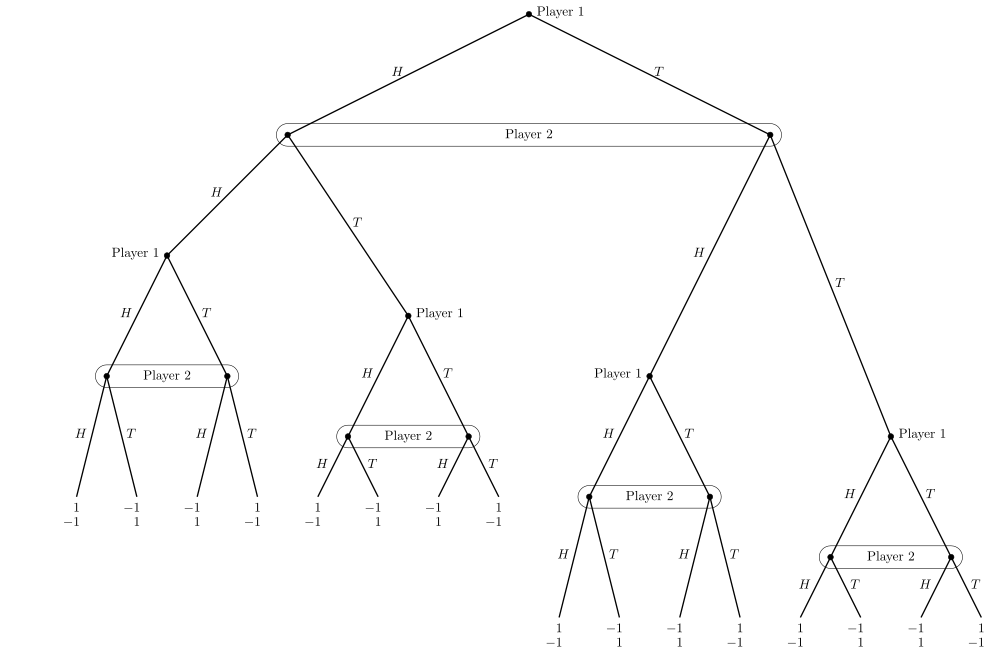
Already this looks good, but perhaps it would look neater if the terminal nodes were all extended to the bottom of the image for consistency. To achieve this, set shared_terminal_depth=True:
[4]:
draw_tree(
    g,
    shared_terminal_depth=True
)
[4]:
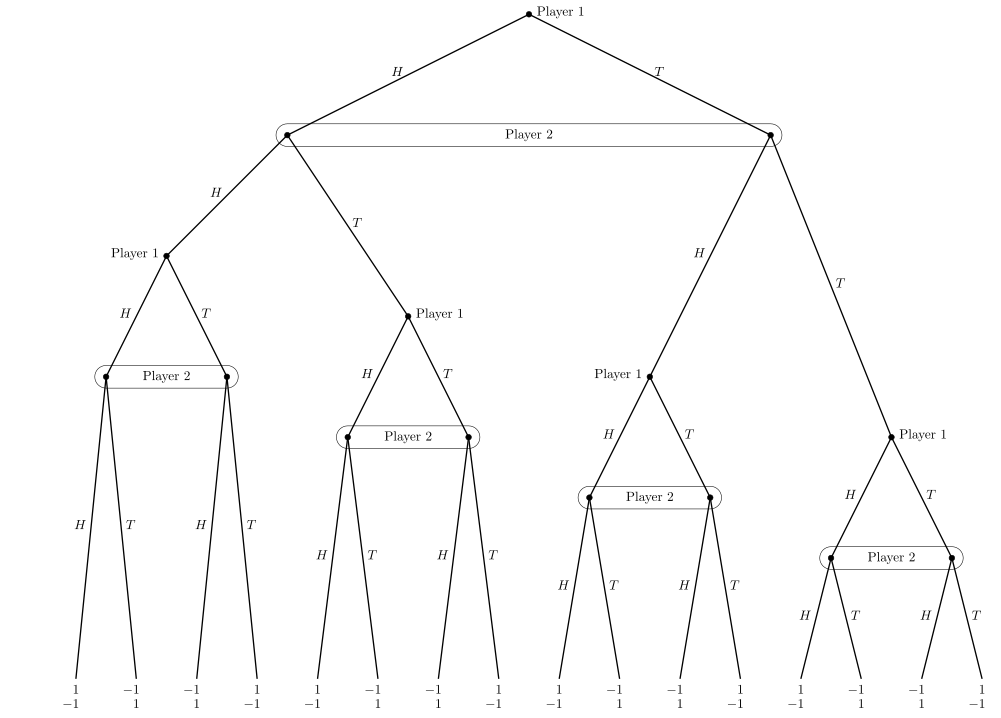
This image is quite large, but the game isn’t overly complex, so we can reduce the size with the scale_factor:
[5]:
draw_tree(
    g,
    shared_terminal_depth=True,
    scale_factor=0.5
)
[5]:
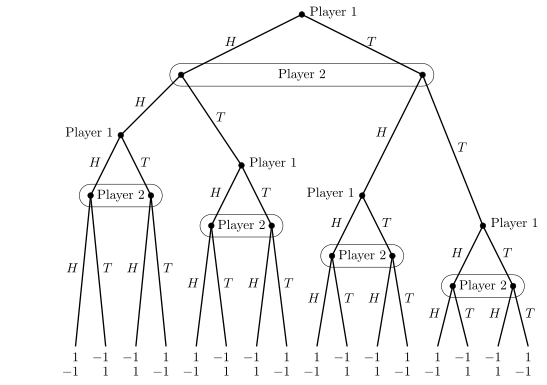
Perhaps the size of the image is roughly correct, but we want to reduce the distance between node levels; we can scale the level spacing with level_scaling:
[6]:
draw_tree(
    g,
    shared_terminal_depth=True,
    scale_factor=0.5,
    level_scaling=0.75
)
[6]:
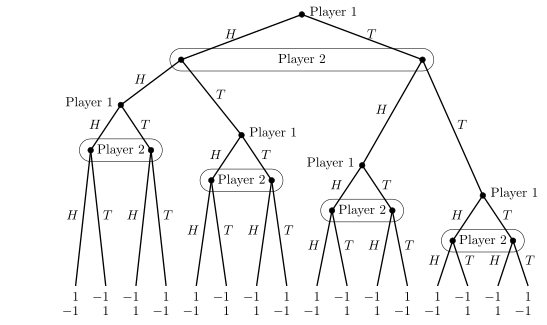
By default, Gambit’s layout algorithm has split nodes at the same level (depth) of the game across sublevels. For this game, it will probably look better to sublevel_scaling to zero:
[7]:
draw_tree(
    g,
    shared_terminal_depth=True,
    scale_factor=0.5,
    level_scaling=0.75,
    sublevel_scaling=0
)
[7]:
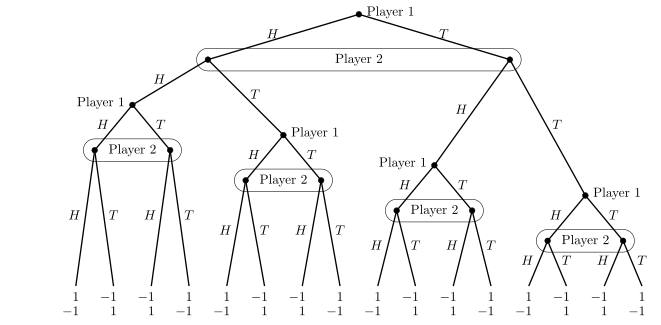
The player labels are looking a little cramped. Let’s adjust the width by increasing the width_scaling:
[8]:
draw_tree(
    g,
    shared_terminal_depth=True,
    scale_factor=0.5,
    level_scaling=0.75,
    sublevel_scaling=0,
    width_scaling=1.25
)
[8]:
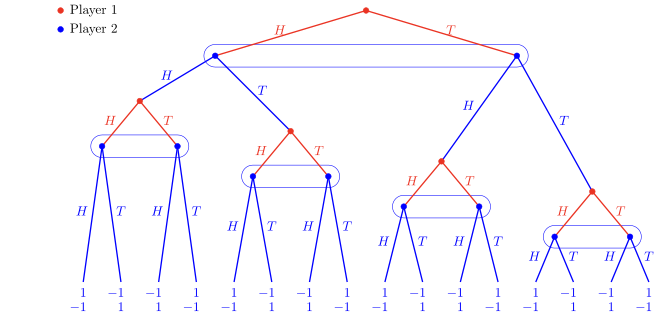
If we want to use color in our image, we can set the color_scheme. Here let’s use the “gambit” color scheme:
[9]:
draw_tree(
    g,
    shared_terminal_depth=True,
    scale_factor=0.5,
    level_scaling=0.75,
    sublevel_scaling=0,
    width_scaling=1.25,
    color_scheme="gambit"
)
[9]:
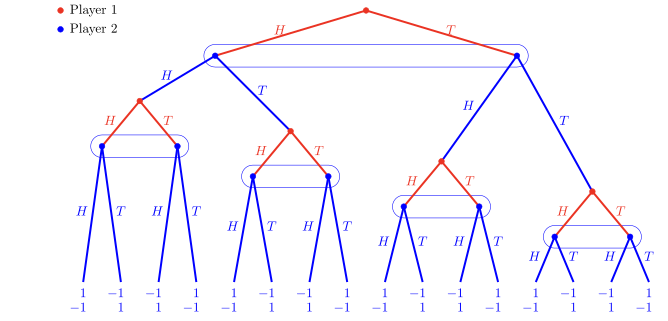
An advantage to using a color scheme is that nodes no longer require player labels, which are handled by the legend, de-cluttering the image further.
Let’s make our image more striking by increasing the edge_thickness:
[10]:
draw_tree(
    g,
    shared_terminal_depth=True,
    scale_factor=0.5,
    level_scaling=0.75,
    sublevel_scaling=0,
    width_scaling=1.25,
    color_scheme="gambit",
    edge_thickness=1.5
)
[10]:
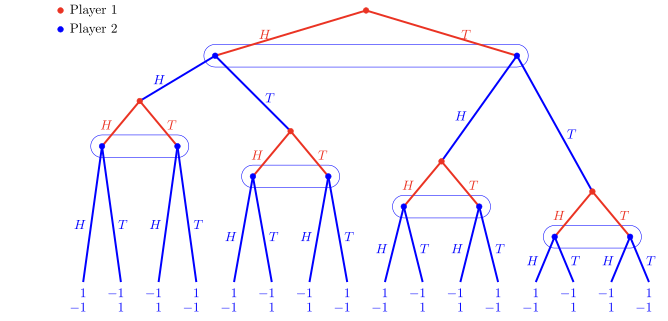
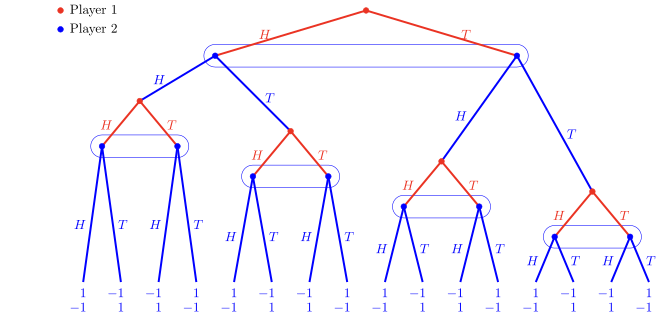
One final adjustment we could make would be to adjust the positioning of action labels on the image. This can be helpful in cases where the action labels overlap visually with information sets boundaries or other features. The default value of 0.5 places the labels halfway along the edges, which for this game looks about right, but we can change this by setting action_label_position:
[11]:
draw_tree(
    g,
    shared_terminal_depth=True,
    scale_factor=0.5,
    level_scaling=0.75,
    sublevel_scaling=0,
    width_scaling=1.25,
    color_scheme="gambit",
    edge_thickness=1.5,
    action_label_position=0.6
)
[11]:
Saving images#
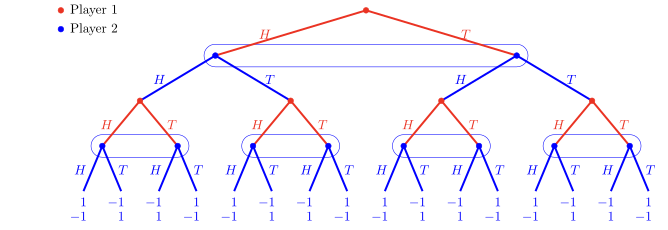
Once we are happy with our image, we can save it as a Tex file, or generate a PNG or PDF with the rendered image. Each of the following functions takes the same arguments as the draw_tree examples above. Setting the save_to argument will determine where the .ef file used by draw_tree to preserve layout information is saved, as well as the output image or Tex file:
[12]:
draw_tree(
    g,
    shared_terminal_depth=True,
    scale_factor=0.5,
    level_scaling=0.75,
    sublevel_scaling=0,
    width_scaling=1.25,
    color_scheme="gambit",
    edge_thickness=1.5,
    action_label_position=0.6,
    save_to="2smp"  # Creates 2smp.ef
)
[12]:
Save to TeX#
from draw_tree generate_tex
generate_tex(
    g,
    shared_terminal_depth=True,
    scale_factor=0.5,
    level_scaling=0.75,
    sublevel_scaling=0,
    width_scaling=1.25,
    color_scheme="gambit",
    edge_thickness=1.5,
    action_label_position=0.6,
    save_to="2smp"  # Creates 2smp.ef and 2smp.tex
)
Save to PDF#
from draw_tree import generate_pdf
generate_pdf(
    g,
    shared_terminal_depth=True,
    scale_factor=0.5,
    level_scaling=0.75,
    sublevel_scaling=0,
    width_scaling=1.25,
    color_scheme="gambit",
    edge_thickness=1.5,
    action_label_position=0.6,
    save_to="2smp"  # Creates 2smp.ef and 2smp.pdf
)
Save to PNG#
from draw_tree import generate_png
generate_png(
    g,
    shared_terminal_depth=True,
    scale_factor=0.5,
    level_scaling=0.75,
    sublevel_scaling=0,
    width_scaling=1.25,
    color_scheme="gambit",
    edge_thickness=1.5,
    action_label_position=0.6,
    save_to="2smp"  # Creates 2smp.ef and 2smp.png
)
Further adjustments to game images#
If your image requires further adjustments, you can manually edit your game’s .ef file. You can find information on EF format specs in the draw_tree docs.
EF files that are manually created or (exported from Game Theory Explorer can be drawn by draw_tree with the same functions explored in this tutorial, but you should drop the formatting parameters:
draw_tree('path/to/game.ef')
generate_tex('path/to/game.ef')
generate_pdf('path/to/game.ef')
generate_png('path/to/game.ef')